
Case Study
Building Brew Updates
I wanted Homebrew to look after itself: update on a schedule, back up first, check its own health and tell me about vulnerabilities, without me remembering to run anything. It started as a Bash script and grew into a signed, self-updating Mac app. Here's how the pieces fit together and the decisions behind them.
Architecture
The script is the engine. The LaunchAgent and the app are its triggers, and a folder of files in your home directory is the contract between them: the script writes run files, the app reads them.
Triggers
- LaunchAgentYour schedule, via launchd
- Brew Updates appUpdate All, Dry Run, Upgrade
- TerminalRun by hand
Engine
update · upgrade · backup · doctor · deprecations · Grype + brew vulns · cleanup
Writes local state
- ~/.brew_logsLogs, reports, *.summary.json, run lock
- ~/.brew_backupsBrewfile before every run
- ~/.brew_update_configSettings + LaunchAgent plist
Calls external tools
- Homebrewbrew CLI + GitHub
- GrypeCellar vulnerability scan
- brew vulnsOSV.dev lookups
The app reads runs and edits config from the same files, and makes only the direct brew changes you ask for (pin, uninstall, restore).
What a run does
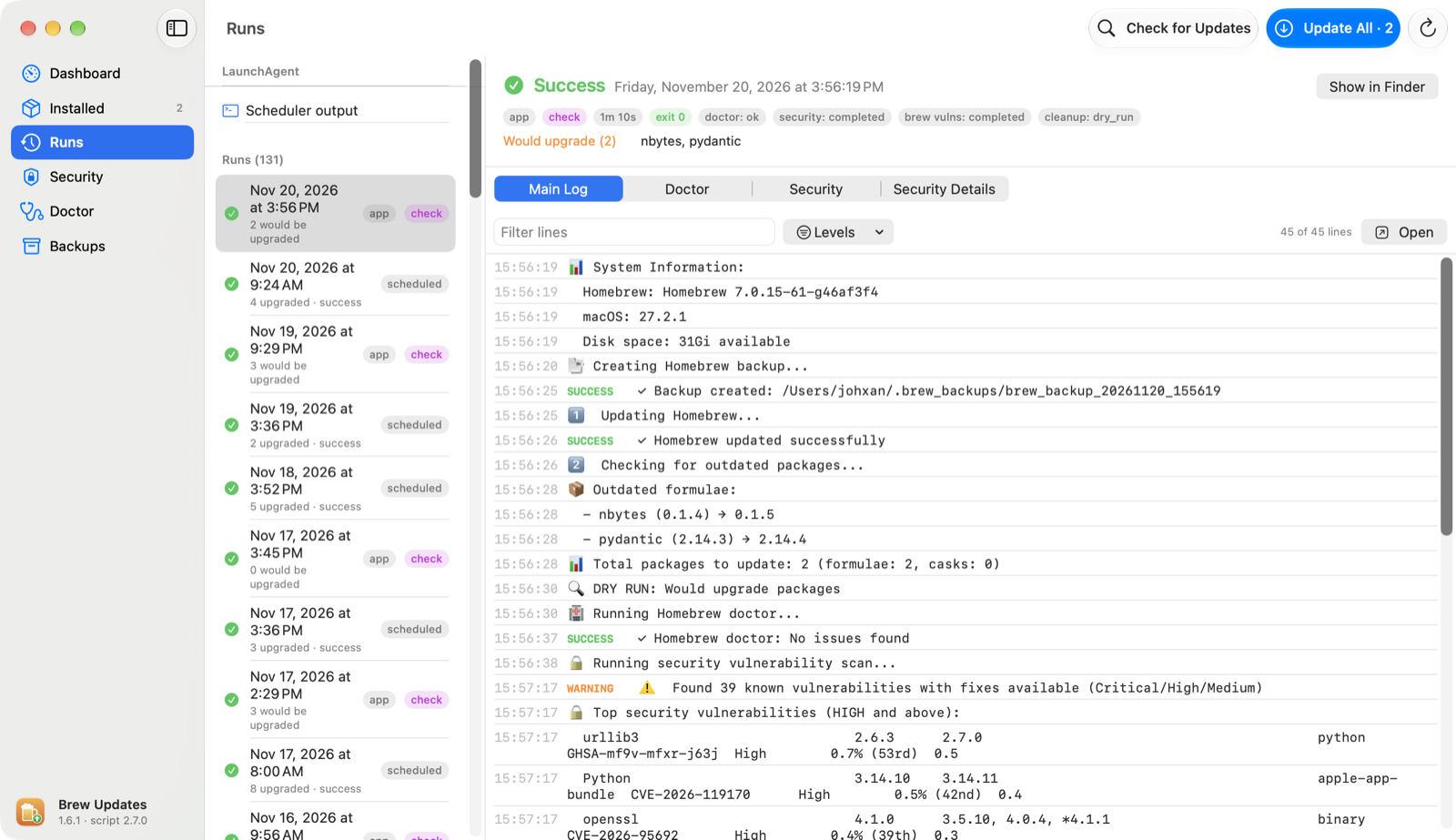
Every run, scheduled or not, goes through the same pipeline. The EXIT trap runs on errors and interrupts too, so every run that got the lock leaves a summary and releases the lock.
- 1Acquire the run lock (exit 5 if another run holds it)
- 2Load and validate config and environment variables
- 3Pre-flight: brew, git, at least 1 GB free disk, network
- 4Brewfile backup, rotated to the configured count
- 5brew update, retried with exponential backoff
- 6Find outdated packages, dropping pinned, excluded and self-updating casks
- 7brew vulns on the outdated formulae (advisory only)
- 8Upgrade formulae, then casks
- 9brew doctor report and deprecated/disabled check
- 10Grype scan, then brew vulns scan
- 11brew cleanup + autoremove, prune old logs
- 12Notification, then the EXIT trap writes *.summary.json and releases the lock
Key design decisions
One engine, two triggers
The Bash script is the only thing that upgrades packages. The launchd schedule and the app both just launch it, so a run started from the app gets exactly the same backup, lock, logs and summary as a 3 AM scheduled run. There is no second code path to drift out of sync.
Files as the contract
The script writes its results to ~/.brew_logs and the app reads them. No daemon, no database, no IPC: the app can be closed, crash or be replaced by an update and scheduled runs don't care. It also makes every run inspectable with a text editor.
Fail safe, not silent
Commands run as arrays with no eval, and every config value and package name is checked against a regex. An atomic mkdir run lock prevents overlapping runs, and an EXIT trap writes a summary even on errors or Ctrl-C. The script never calls sudo itself.
Two scanners on purpose
Grype scans the files in the Cellar; brew vulns looks formulae up in OSV.dev. They catch different things and disagree in useful ways, so the app shows them side by side with a trend chart rather than merging them into one number.
Bash 3.2, deliberately
launchd runs macOS's built-in /bin/bash, which is 3.2. The script avoids associative arrays and mapfile so the scheduled run never depends on a newer shell from Homebrew, the very thing it is upgrading.
Graceful degradation
A failed doctor run, scan or notification is logged but doesn't stop the run. Missing optional tools (Grype, jq) are reported as unavailable rather than failing, and each kind of failure has its own exit code.
From script to shipped Mac app
Turning a personal script into something anyone can install meant handling Apple's signing requirements and keeping installs up to date without an App Store.
Signed and notarized
Developer ID signing with the hardened runtime and an Apple-notarized DMG, so the only prompt a user sees is the standard one-time "downloaded from the internet" check.
Self-updating with Sparkle
The app checks an appcast on GitHub Releases once a day. An update installs only if its EdDSA signature matches the key built into the app and it is signed by the same Developer ID team. Each app version carries its own script, installed at launch.
Homebrew cask
A cask in my own tap (jxman/homebrew-tap) offers a one-line install. It is marked auto_updates, so brew upgrade leaves updates to Sparkle instead of fighting it.
First-launch setup
On first launch the app installs the script into Application Support and registers the LaunchAgent, replacing what used to be a manual setup.sh step.
Quality gates
- ✓ShellCheck on the script
- ✓SwiftLint --strict on the app
- ✓Swift Testing unit tests for models and services
- ✓pre-commit with ggshield secret scanning and Conventional Commits
- ✓GitHub Actions on macos-latest
- ✓XcodeGen project.yml as the source of truth (no checked-in .xcodeproj)
Tech stack
| Script | Bash (macOS /bin/bash 3.2 compatible) |
|---|---|
| Scheduling | launchd LaunchAgent |
| Security scanning | Grype + brew vulns (OSV.dev), jq |
| App | Swift 6, SwiftUI, Swift Charts, macOS 15+ |
| App project | XcodeGen |
| App updates | Sparkle 2, EdDSA-signed appcast on GitHub Releases |
| Distribution | Developer ID, hardened runtime, notarized DMG, Homebrew cask |
| Quality | ShellCheck, SwiftLint, pre-commit, ggshield, GitHub Actions |
Known constraints
- •Apple silicon only for the app; the script itself runs on Intel too.
- •Casks that update themselves are skipped, so the app shows their own version instead.
- •Scanner false positives happen: Grype misreads some Homebrew version strings (anchore/grype#3865), handled with targeted ignore rules.
- •No bottle provenance check by default: brew verify downloads the bottle and needs the GitHub CLI, so it stays a manual step.